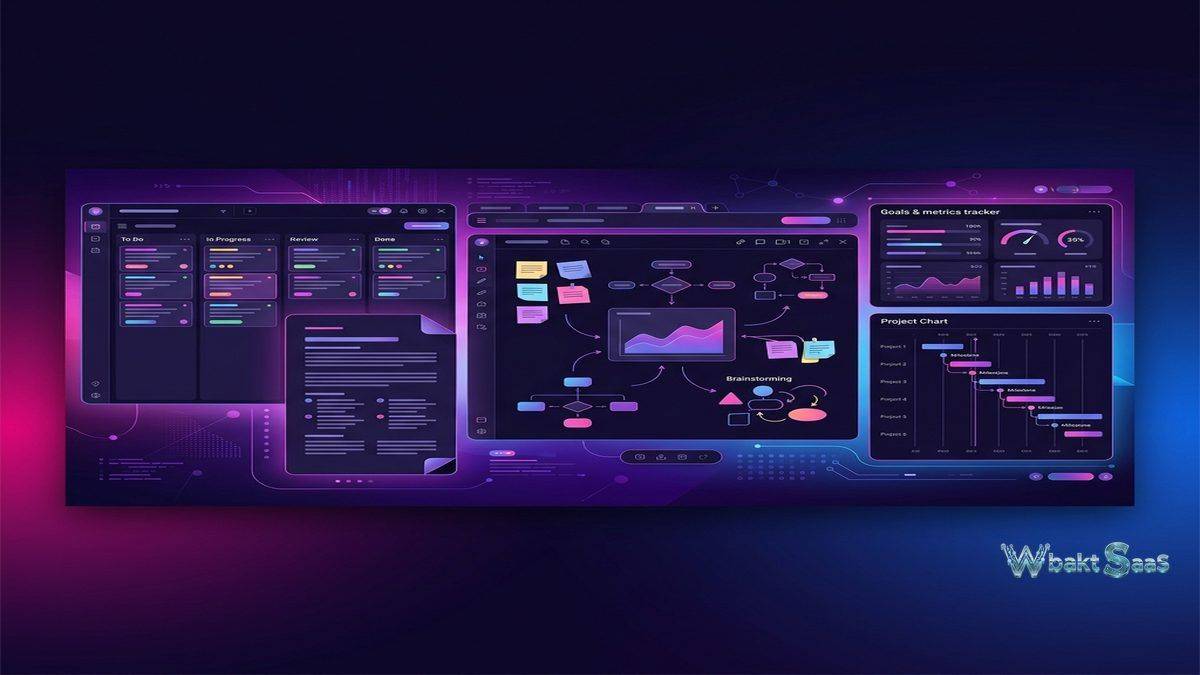
The promise of an all-in-one workspace is seductive: replace the scattered collection of task managers, document editors, spreadsheets, wikis, and goal trackers with a single platform that handles everything. ClickUp pursues this vision more aggressively than most competitors in the project management space, offering a feature set that spans task management, document creation, whiteboard collaboration, goal tracking, time tracking, and custom dashboards — all within a single application. The breadth is impressive, though it raises a practical question every team must answer for themselves: does consolidating everything into one tool simplify work, or does it create a different kind of complexity?
ClickUp has grown rapidly since its founding in 2017, attracting teams across industries with a combination of generous free-tier offerings, aggressive feature development, and a customization philosophy that lets users configure nearly every aspect of the platform. Understanding where ClickUp delivers genuine value — and where its ambition to do everything occasionally creates friction — requires looking beyond the feature list and into the practical experience of using the platform day to day.
Introduction to the Platform
ClickUp structures work through a five-level hierarchy: Workspace, Space, Folder, List, and Task. The Workspace represents the entire organization. Spaces organize work by department, team, or major initiative. Folders group related Lists within a Space, and Lists contain the individual Tasks that represent units of work. Tasks can include subtasks, checklists, attachments, comments, time entries, and custom field values.
This hierarchy provides more organizational depth than many competing platforms, which can be both an advantage and a challenge. Teams managing complex multi-departmental workflows appreciate the ability to structure work at multiple levels with clear boundaries between different areas of responsibility. Smaller teams or those with simpler workflows may find the hierarchy unnecessarily deep, creating more organizational structure than their work actually requires.
ClickUp emphasizes customization throughout its design. Users can enable or disable specific features at the Space level — called ClickApps — tailoring each Space’s functionality to the team that uses it. An engineering Space might enable sprint management, time tracking, and Git integration, while a marketing Space enables custom fields for campaign tracking, proofing for design review, and email integration. This per-Space configuration prevents feature bloat from overwhelming teams that only need a subset of ClickUp’s capabilities.
Key Features
Task Management and Views
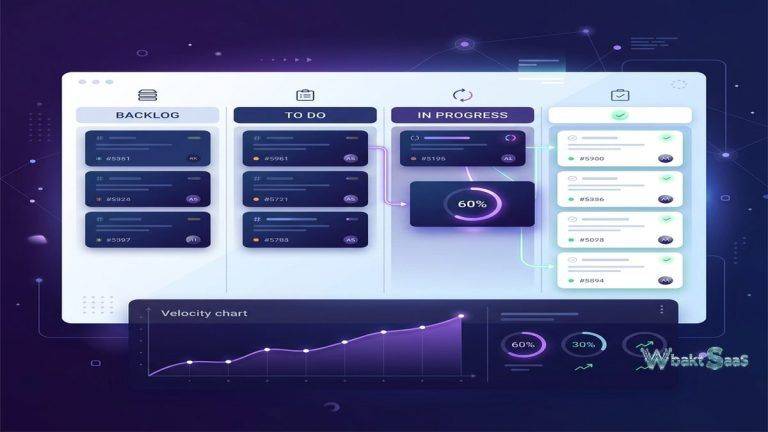
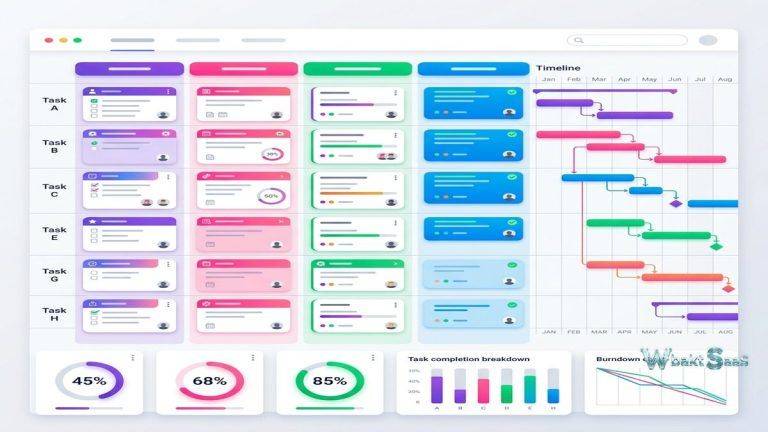
Task management sits at ClickUp’s core, and the platform offers more than fifteen ways to visualize task data. List view presents tasks in a structured format with sortable columns. Board view arranges tasks as cards across workflow stages. Calendar view maps tasks to dates. Gantt view plots tasks along a timeline with dependency connections. Timeline view shows task durations for team capacity assessment. Table view provides a spreadsheet-like interface for rapid data entry and editing. Workload view distributes tasks across team members based on capacity estimates. Map view plots tasks with location data geographically. Mind Map view creates visual hierarchies of task relationships.
The diversity of views matters because different team members and different planning scenarios benefit from different visual perspectives. A project manager reviewing cross-team dependencies works best in Gantt view. A team lead balancing workloads across designers needs Workload view. An individual contributor planning their week prefers Calendar or List view. The ability to switch between these perspectives on the same underlying data without recreating or duplicating information is one of ClickUp’s strongest practical advantages.
Custom fields enable teams to add data dimensions beyond ClickUp’s built-in task properties. Field types include dropdown menus, numbers, dates, text, checkboxes, currency, email, phone, ratings, progress bars, and formulas. Custom fields appear as columns in List and Table views and can drive filters, sorts, and dashboard widgets. Teams tracking budgets can add currency fields to calculate project costs. Teams managing content can add dropdown fields for content type, target audience, and publication channel. The flexibility to define precisely what data each task carries makes ClickUp adaptable to workflows that generic task properties cannot accommodate.
ClickUp Docs
ClickUp Docs provides a built-in document creation and collaboration environment. Documents support rich text formatting, nested pages, embedded media, tables, code blocks, and banners. Real-time collaboration allows multiple team members to edit simultaneously, with commenting and suggestion features for asynchronous review workflows.
What distinguishes ClickUp Docs from standalone document platforms is the integration with task management. Documents can be linked directly to tasks, Spaces, and Folders, creating connections between reference documentation and active work items. A project brief written in ClickUp Docs can reference specific tasks within the associated project, and status changes in those tasks are accessible from within the document context. Teams that currently maintain wikis, SOPs, or project documentation in separate tools may find this integration reduces context switching.
Docs also support wiki-style organization with nested page hierarchies and categorization, making them suitable for knowledge base construction. Search functionality indexes document content alongside task data, meaning a single search query can surface both a relevant task and the documentation that describes the process for completing it.
Whiteboards
ClickUp Whiteboards provide an infinite canvas for visual collaboration — brainstorming sessions, workflow diagrams, user journey mapping, and strategic planning. The whiteboard integrates with ClickUp’s task system, allowing users to convert whiteboard elements directly into tasks. A brainstorming session that generates action items can produce linked tasks without leaving the whiteboard, maintaining the connection between ideation and execution.
Whiteboards include drawing tools, shapes, sticky notes, connectors, text elements, and embedded media. Real-time collaboration supports simultaneous editing by multiple team members, with cursor visibility showing who is working where on the canvas. For distributed teams, whiteboards serve as a digital substitute for physical whiteboard sessions that remote work makes impossible.

Goals and OKR Tracking
ClickUp Goals connects daily task work to measurable objectives. Goals can track progress through multiple target types: numerical targets (reach 1,000 subscribers), monetary targets (achieve $50,000 in quarterly revenue), true/false targets (launch new feature), and task-based targets (complete all tasks in a specific List). Progress updates automatically when linked tasks or targets change, providing real-time visibility into how operational work translates to strategic outcomes.
Goals can be organized into Folders for alignment — quarterly OKR folders containing departmental goals, each linked to specific project Lists and tasks. This hierarchical goal structure supports the cascading objective frameworks that many organizations use to connect individual contributions to company-wide priorities. For remote teams where visibility into organizational direction can feel limited, goal tracking within the same platform where daily work happens creates a tangible link between effort and impact.
Time Tracking
Built-in time tracking allows team members to log time directly on tasks through a global timer, manual time entries, or time range entries. Time data appears at the task level, aggregates at the List, Folder, and Space levels, and feeds into dashboard reports. Teams billing clients by the hour, tracking project profitability, or monitoring time allocation across initiatives can use native time tracking without requiring a separate time-tracking application.
Time estimates can be set per task and compared against actual time logged, providing data for future estimation accuracy improvements. Billable and non-billable time categories help service teams distinguish between client-facing work and internal activities. While ClickUp’s time tracking covers common use cases, teams with advanced time management requirements — detailed approval workflows, complex billing rule engines, or integration with specific payroll systems — may still benefit from dedicated time tracking platforms that connect to ClickUp through integrations.
Automation
ClickUp’s automation system uses trigger-action recipes to automate repetitive processes. Available triggers include status changes, assignee changes, due date arrivals, priority changes, tag additions, custom field updates, and task creation events. Actions include modifying task properties, moving tasks, creating tasks, sending notifications, calling webhooks, and applying templates. Conditional logic allows automations to execute only when specific criteria are met, adding precision to automated workflows.
Pre-built automation templates cover common patterns — assigning tasks when status changes, notifying team leads when priorities shift, archiving completed tasks after a delay, and escalating overdue items. Custom automations allow teams to build workflows specific to their processes. Automation quotas vary by plan tier, with higher tiers offering more monthly automation runs.
Integrations Ecosystem
ClickUp integrates with over a thousand external applications through native connections and platforms like Zapier and Make. Native integrations cover major categories: Slack and Microsoft Teams for communication, Google Drive and Dropbox for file storage, GitHub and GitLab for development, Figma for design, HubSpot and Salesforce for CRM, and Calendly for scheduling. The ClickUp API provides programmatic access for custom integration development.
Email integration allows users to send and receive emails within ClickUp, converting email threads into tasks or attaching email conversations to existing tasks. This bridges the gap between email-based workflows and task-based project management, though it does not replace a full email client. Calendar synchronization with Google Calendar and Outlook ensures that task due dates and scheduled work appear alongside meetings and other commitments in users’ existing calendar applications.
For development teams, the GitHub and GitLab integrations connect code commits, pull requests, and branches to ClickUp tasks. This creates bidirectional visibility — developers see task context within their development environment, and project managers see development progress within ClickUp. Bitbucket integration provides similar connectivity for teams using that platform. These developer-focused integrations position ClickUp as a viable choice for engineering teams that want project management tightly coupled with their development workflow.
Security and Permissions
ClickUp provides granular permission controls that scale with organizational complexity. Permissions operate at the Workspace, Space, Folder, List, and Task levels, allowing administrators to define precisely who can view, comment, edit, or manage content at each level of the hierarchy. Guest access enables external collaborators — clients, contractors, or partners — to access specific Spaces or Lists without gaining visibility into the broader organization.
Enterprise plans include SAML-based single sign-on (SSO) for centralized identity management, custom role definitions that go beyond the default permission levels, and advanced audit logging that tracks user activity for compliance purposes. Two-factor authentication is available on all plans, providing baseline account security. Data encryption covers both data in transit and data at rest across all plan tiers.
Organizations operating in regulated industries should evaluate ClickUp’s compliance certifications and data handling practices against their specific requirements. SOC 2 Type II certification provides assurance around security, availability, and confidentiality controls. Teams with data residency requirements should verify whether ClickUp’s infrastructure options meet their geographic data storage needs.
Learning Curve and Adoption
ClickUp’s learning curve is frequently cited as both a strength and a weakness in user discussions. The platform’s extensive customization options mean that there is almost always a way to configure ClickUp to match a team’s workflow — but discovering and implementing that configuration takes time. New users often describe an initial period of overwhelm as they encounter the sheer volume of features, settings, and configuration options available.
ClickUp has invested heavily in educational resources to address this challenge. ClickUp University offers structured courses covering platform fundamentals, advanced features, and use-case-specific configurations. Template libraries provide pre-configured Spaces and Lists for common workflows. Community forums and an active user community contribute tips, workarounds, and shared templates. Despite these resources, organizations adopting ClickUp at scale often benefit from designating internal champions who invest deeper learning time and then guide their teams through configuration and adoption.
The platform’s rapid development pace deserves mention in the context of adoption. ClickUp releases new features and interface updates frequently, which keeps the platform competitive but can occasionally disrupt established workflows. Teams that have carefully configured their workspace may need to adjust when interface changes alter how familiar features are accessed. This rapid iteration appeals to users who want cutting-edge capabilities but can frustrate those who prefer stability.
Use Cases Where ClickUp Excels
- Agencies managing multiple clients: The Space-per-client structure with custom workflows per engagement, combined with time tracking for billing and dashboards for client reporting, creates a comprehensive agency management environment.
- Product development teams: Sprint management ClickApps, GitHub integration, bug tracking with custom fields, and roadmap visualization through Gantt views support the product development lifecycle from ideation through release.
- Marketing departments: Content calendars, campaign tracking boards, asset management through Docs, and creative brainstorming through Whiteboards cover the range of marketing activities within a single platform.
- Teams replacing multiple tools: Organizations currently paying for separate task management, documentation, time tracking, and goal tracking tools can often consolidate into ClickUp, reducing both cost and context-switching overhead.
- Remote-first organizations: Asynchronous collaboration through task comments, Docs, and recorded Whiteboards supports distributed teams that cannot rely on real-time interaction for every decision and update.
Pricing
ClickUp’s free tier is notably generous compared to many competitors, offering unlimited tasks, unlimited members, and access to most core features including Docs, Whiteboards, and basic dashboards. Storage limitations and reduced feature access on the free tier primarily affect power users and larger teams rather than basic functionality.
Paid tiers add unlimited storage, advanced dashboard capabilities, increased automation quotas, Gantt charts, time tracking, custom fields in more configurations, and administrative controls. Business and Enterprise plans include advanced permissions, SSO, custom roles, and dedicated support. Pricing is per-member, per-month with annual billing discounts.
Pricing and features are subject to change. Please verify current plan details on the official ClickUp website before making purchasing decisions.
Pros and Cons
| Pros | Cons |
|---|---|
| Generous free tier with unlimited tasks and members | Feature density can overwhelm new users during onboarding |
| 15+ view types for flexible data visualization | Performance can lag with very large workspaces and complex configurations |
| Built-in Docs, Whiteboards, Goals, and Time Tracking | Mobile app lacks some features available on desktop |
| Highly customizable with ClickApps per Space | Rapid feature releases occasionally introduce bugs that require patches |
| Extensive automation with conditional logic | The five-level hierarchy can feel excessive for small teams |
| Strong integration ecosystem with 1000+ connections | Docs and Whiteboards are functional but not as deep as dedicated alternatives |
Final Thoughts
ClickUp’s all-in-one approach genuinely delivers on breadth. Few platforms combine task management, document collaboration, whiteboard ideation, goal tracking, time tracking, and workflow automation within a single application as comprehensively as ClickUp does. For teams currently juggling multiple separate tools and seeking consolidation, ClickUp presents a compelling case — especially given its generous free tier that allows thorough evaluation before financial commitment.
The trade-off for this breadth is complexity. ClickUp’s feature density means that new teams face a longer discovery period before they understand what the platform can do and how to configure it for their specific needs. Teams that invest the setup time to configure Spaces thoughtfully, define relevant custom fields, and build automations that match their workflows typically report high satisfaction. Teams that adopt ClickUp without deliberate configuration often find themselves lost in options.
Productivity platforms such as ClickUp, Asana, Monday.com, Notion, and Wrike each prioritize different aspects of work management. ClickUp’s differentiator is its ambition to cover the widest possible range of use cases within a single platform. Whether that ambition aligns with your team’s needs depends on how many separate tools you currently use, how willing your team is to invest in platform configuration, and whether the convenience of consolidation outweighs the depth of specialized alternatives for each individual function.
Features, pricing, and availability discussed in this review reflect information available at the time of writing. Software products evolve continuously, and details may have changed since publication. Please verify current information directly on the official ClickUp website. WBAKT SaaS is an independent review platform with no affiliate relationships with any software company mentioned in this article.
Explore related productivity tools in our reviews of Notion vs Coda workspace comparison, Asana project tracking for remote teams, and Monday.com’s visual project management.
About the Author