Cloud-native productivity suites have fundamentally changed how organizations create, share, and collaborate on work. Google Workspace — formerly G Suite and before that Google Apps — represents one of the most widely adopted cloud productivity platforms, serving millions of businesses, educational institutions, and nonprofit organizations worldwide. Built entirely for the cloud from inception, Google Workspace takes a different architectural approach than productivity suites that evolved from desktop software: every application runs in the browser, every file lives in the cloud, and every feature is designed for real-time collaboration as a primary function rather than an afterthought.
The suite brings together familiar tools — Gmail, Google Drive, Docs, Sheets, Slides, Meet, Calendar, and Chat — under a unified platform with shared identity management, consistent design language, and deep cross-application integration. For organizations evaluating business productivity platforms, understanding how Google Workspace’s cloud-native approach creates both advantages and trade-offs compared to traditional desktop-centric suites provides essential context for informed decision-making.
Suite Overview
Google Workspace organizes its applications around three core functions: communication, content creation, and file management. Gmail handles business email with custom domain support, spam filtering, and search capabilities that benefit from Google’s expertise in information retrieval. Google Meet provides video conferencing for scheduled meetings and impromptu calls. Google Chat delivers instant messaging through direct messages and Spaces — persistent group conversations organized around topics or teams.
Content creation applications include Google Docs for word processing, Google Sheets for spreadsheets, Google Slides for presentations, Google Forms for surveys and data collection, and Google Sites for simple website creation. Each application operates entirely in the web browser with automatic saving, version history, and real-time multi-user collaboration as standard features across all applications.
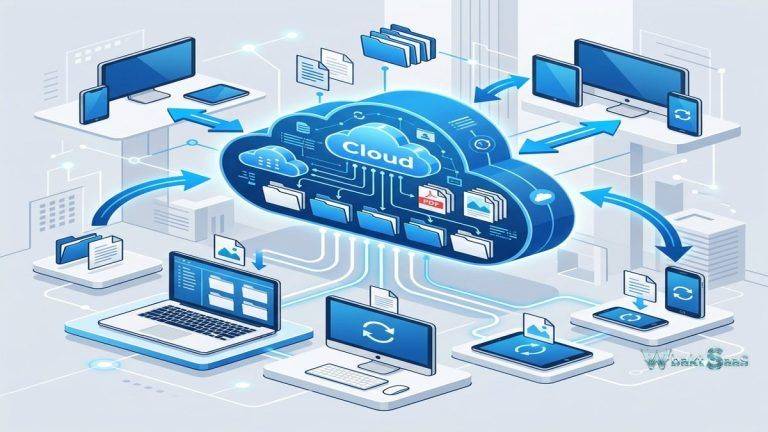
Google Drive serves as the unified file management layer, storing files created in Google applications alongside uploaded files of any format. Drive’s organizational model uses folders, shared drives (team-level storage), and search to help users manage their files. The search functionality is particularly strong — inheriting Google’s search technology to index file names, content, and metadata for rapid retrieval across potentially enormous file collections.
Real-Time Collaboration
Real-time collaboration is arguably Google Workspace’s defining characteristic and its most significant competitive advantage. Multiple users can edit the same document, spreadsheet, or presentation simultaneously, with each person’s changes appearing instantly to all other collaborators. Cursor presence indicators show where each collaborator is working, preventing conflicting edits to the same section. This real-time collaboration eliminates the version control nightmare that plagues email-based document workflows — no more “Final_v3_REVISED_actual_final.docx” file naming conventions.
Commenting and suggesting features provide structured feedback mechanisms within documents. Comments can be addressed to specific collaborators with @mentions, creating notification-driven review workflows. Suggesting mode tracks proposed changes that document owners can accept or reject individually, similar to track changes in traditional word processors but with the advantage of real-time visibility. Comment threads maintain conversations about specific content within the document context, keeping feedback anchored to the relevant text, cell, or slide.
Shared drives provide team-level file ownership that persists when individual team members leave the organization. Unlike files in personal My Drive storage that are owned by individual users, shared drive files belong to the team. This prevents the disruptive scenario where a departing employee’s files become inaccessible or must be manually transferred to other users. For organizations with regular staff turnover, shared drives protect institutional knowledge and work continuity.
Version history maintains a comprehensive record of all changes to Google files, with the ability to view previous versions, see who made specific changes, and restore earlier versions if needed. Named versions allow users to mark significant milestones — “Pre-review draft,” “Client-approved version,” “Published version” — creating reference points within the change history. This granular version tracking provides confidence that no work is permanently lost and that changes can always be reviewed or reversed.

Gmail and Business Email
Gmail within Google Workspace provides business email on custom domains with Google’s email infrastructure handling delivery, spam filtering, and storage. The search-centric interface reflects Google’s core competency — finding specific emails, even years old, is remarkably fast compared to folder-based email systems. Labels replace folders with a more flexible categorization model where a single email can carry multiple labels, appearing in multiple virtual “folders” simultaneously.
Smart features including smart compose (predictive text suggestions), smart reply (suggested quick responses), and email categorization (automatically sorting promotional, social, and primary messages) reduce the manual effort of email management. Confidential mode allows sending emails with expiration dates and revocation capabilities, providing a measure of control over sensitive information after it has been sent.
Integration with Google Calendar, Google Chat, and Google Meet creates seamless transitions between communication channels. An email conversation can escalate to a Chat message or a video meeting without leaving the Gmail interface. Calendar events referenced in emails are automatically detected and offered for addition to the user’s calendar. These cross-application connections reduce the friction of switching between communication modes.
Google Meet
Google Meet provides video conferencing that integrates deeply with Calendar, Gmail, and Chat. Meetings can be created from Calendar events, email invitations, or Chat conversations with automatic link generation and participant invitation. The meeting experience includes screen sharing, hand raising, polls, Q&A, breakout rooms, live captions with translation, and recording capabilities.
Noise cancellation filters out background sounds during meetings. Virtual backgrounds and background blur provide visual privacy. The adaptive layout automatically adjusts the video grid based on who is speaking and how many participants are present. For larger events, Google Meet supports webinar-style broadcasts with participant management and moderation controls.
Meeting quality adapts to network conditions, maintaining audio clarity even when bandwidth limitations require video quality reduction. The browser-based meeting experience means participants can join without downloading software — a practical advantage when meeting with external contacts who may not have the desktop application installed.
Google Chat and Spaces
Google Chat provides team messaging functionality integrated within the Google Workspace environment. Direct messages handle one-on-one and small group conversations, while Spaces provide persistent, topic-based collaboration environments similar to channels in other messaging platforms. Spaces support threaded conversations, file sharing, task assignment, and integration with other Google Workspace applications.
Within Spaces, teams can create collaborative documents, assign tasks with due dates and status tracking, and share files from Drive — all within the messaging context. This integration means a design team can discuss a project in a Space, create a shared Docs document for the project brief, assign review tasks to team members, and track progress without switching between separate applications. The conversational and project management elements coexist within the same interface.
Inline threading keeps conversations organized within active Spaces, preventing the message clutter that unthreaded group messaging creates. Notifications can be customized per Space, allowing users to follow high-priority Spaces closely while muting less urgent channels. Smart notifications group related updates to reduce notification frequency without losing important information.
Google Calendar
Google Calendar serves as the scheduling backbone of Google Workspace, managing personal and team calendars with features designed for organizational scheduling. Multiple calendar layers — personal, team, shared resource calendars — display simultaneously, providing a unified view of all scheduling commitments. Working hours configuration shows colleagues when team members are available, reducing the back-and-forth of scheduling across different work patterns and time zones.
Appointment schedules allow users to share bookable time slots with external contacts, enabling self-service meeting scheduling similar to dedicated scheduling tools. Room resource management integrates with physical meeting room calendars, showing room availability and enabling booking directly from meeting creation. Out-of-office settings automatically decline new meeting invitations during unavailable periods and can forward existing commitments to delegates.
Calendar’s integration with Gmail, Meet, and Chat creates a scheduling workflow where meetings originate naturally from conversations. Suggested meeting times analyze attendee calendars to find mutually available time slots, reducing the manual effort of coordinating multi-person meetings. For organizations managing dozens of daily meetings across teams and time zones, these scheduling intelligence features provide meaningful efficiency improvements.
AI and Gemini Integration
Google has integrated its Gemini AI technology across Google Workspace applications, adding AI-powered capabilities to content creation, analysis, and communication workflows. In Google Docs, Gemini can help draft content, summarize long documents, rewrite text in different tones, and generate outlines from brief descriptions. In Google Sheets, AI assists with formula creation, data analysis, and generating insights from spreadsheet data. In Gmail, AI helps compose emails, summarize long email threads, and suggest responses.
Google Meet benefits from AI through real-time translated captions, meeting note generation, and attendance tracking. These AI capabilities are designed to augment human productivity rather than replace human judgment — the AI generates drafts and suggestions that users review, modify, and approve before use. The effectiveness of AI features varies by use case, and users should review AI-generated content for accuracy, appropriateness, and alignment with their intended message.
AppSheet, Google’s no-code application development platform, enables organizations to build custom business applications without programming knowledge. Using data from Google Sheets, Google Forms, or external databases, teams can create mobile and web applications for data collection, workflow automation, inventory management, and field operations. This low-code capability extends Google Workspace beyond standard productivity into custom business process automation, though complex application requirements may exceed AppSheet’s capabilities.
Google Drive and Storage
Google Drive provides cloud storage with organizational features including folder hierarchies, color-coded starred items, and powerful search across file names, content, and sharing relationships. Drive storage is pooled at the organizational level on most business plans, allowing flexible distribution of storage across users without per-user storage limits constraining individual productivity.
Offline access allows users to work on Google Docs, Sheets, and Slides without internet connectivity, with changes synchronizing automatically when connectivity returns. Drive for Desktop synchronizes files between cloud storage and local computers, providing traditional file system access to cloud-stored content. This hybrid approach accommodates users who prefer local file management while maintaining the cloud-based collaboration and backup benefits.
File sharing controls range from specific individual access to broad organizational or public sharing. Link sharing settings allow document owners to choose between restricted access (specific people only), organization-wide access (anyone with the link within the organization), and public access (anyone with the link). Transfer of ownership ensures that files can be reassigned when responsibilities shift between team members.
Administration and Security
The Google Admin console provides centralized management for organizational Google Workspace deployment. User management, group administration, device management, security settings, and application configuration are handled through a web-based administrative interface. Directory services integrate with existing identity providers through LDAP and SAML, allowing organizations to maintain their existing identity management systems while enabling Google Workspace access.
Security features include two-step verification enforcement, advanced phishing and malware protection for Gmail, data loss prevention policies for Drive and Gmail, and security investigation tools for threat detection. Mobile device management controls protect organizational data on employee devices through screen lock requirements, remote wipe capabilities, and application management policies.
Compliance features support organizations operating under regulatory requirements with data region policies that control where data is stored, Vault for archiving and eDiscovery, audit logging, and compliance certifications across multiple standards and regulations. These enterprise security and compliance capabilities have made Google Workspace viable for industries including healthcare, financial services, and government that have stringent data handling requirements.
Pricing
Google Workspace pricing follows a per-user, per-month model with annual commitment discounts. Plans range from Business Starter through Business Standard, Business Plus, and Enterprise tiers, with each tier increasing storage allocation, meeting capacity, security features, and administrative controls. Individual Google applications (Gmail, Docs, Drive) are available for free personal use, but business features including custom domain email, administrative controls, and enhanced security require paid Workspace subscriptions.
Pricing and features are subject to change. Please verify current plan details on the official Google Workspace website before making purchasing decisions.
Google Workspace Marketplace
The Google Workspace Marketplace provides hundreds of third-party applications that integrate with the platform, extending functionality across categories including project management, CRM, accounting, HR, e-signature, and specialized industry tools. Integrations appear within Google applications as add-ons — a project management add-on might add a sidebar within Google Docs showing related tasks, or a CRM add-on might display contact information alongside relevant Gmail conversations.
Popular integrations include document signing services that enable contract execution within Google Docs, project management tools that create tasks from Google Calendar events, and accounting integrations that process expense receipts from Gmail attachments. The Marketplace ecosystem ensures that Google Workspace serves as a hub that connects to specialized tools rather than requiring organizations to abandon their existing technology investments.
Google Workspace for Education
Google Workspace for Education provides the suite’s capabilities tailored for educational institutions with additional features including Google Classroom for assignment management, originality reports for plagiarism detection, and Guardian summaries that keep parents informed about student activity. Education editions are available at no cost for qualifying institutions, making Google Workspace one of the most widely adopted educational technology platforms worldwide. Classroom simplifies assignment distribution, submission, grading, and feedback into a workflow that reduces administrative burden on educators while providing students with a consistent digital learning environment.
Limitations
- Advanced spreadsheet limitations: Google Sheets, while capable for most business needs, lacks some advanced features that power users rely on in desktop spreadsheet applications — complex macros, certain data analysis tools, and large dataset handling can hit performance limits.
- Offline experience: While offline access exists, the experience is less seamless than desktop-native applications. Users working frequently without internet may find the offline capabilities insufficient for their needs.
- Formatting fidelity: Document conversion between Google formats and Microsoft Office formats can introduce formatting inconsistencies, particularly for complex documents with advanced layouts, embedded objects, or specialized formatting.
- Internet dependency: As a cloud-native platform, Google Workspace fundamentally requires internet connectivity for full functionality. Organizations with unreliable connectivity may face productivity challenges.
- Migration complexity: Organizations migrating from other platforms face data migration, user training, and workflow adaptation challenges that can disrupt productivity during the transition period.
Summary
Google Workspace has matured into a comprehensive cloud productivity platform that serves organizations of all sizes with effective communication, collaboration, and content creation tools. Its cloud-native architecture enables real-time collaboration and anywhere access that desktop-centric alternatives still work to match. The integrated nature of the suite — where Gmail, Drive, Docs, Meet, Calendar, and Chat work together seamlessly — creates a productive ecosystem that reduces the friction of moving between different work activities.
Business productivity suites including Google Workspace, Microsoft 365, and Zoho Workplace each serve the market with different architectural approaches and ecosystem strengths. Google Workspace’s advantages center on cloud-native collaboration, search excellence, and simplicity. Organizations deeply embedded in other ecosystems should evaluate migration costs and integration implications alongside feature comparisons when making platform decisions.
Features, pricing, and availability discussed in this review reflect information available at the time of writing. Software products evolve continuously, and details may have changed since publication. Please verify current information directly on the official Google Workspace website. WBAKT SaaS is an independent review platform with no affiliate relationships with any software company mentioned in this article.
For related productivity platforms, see our reviews of Microsoft Teams enterprise communication, Notion vs Coda workspace platforms, and Zoom video conferencing.
About the Author