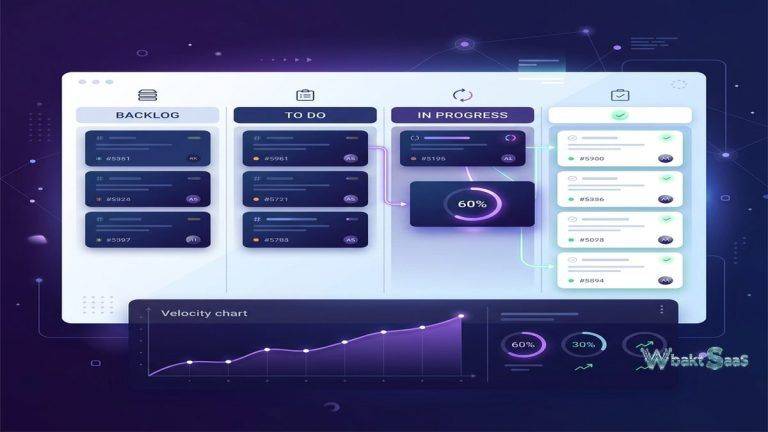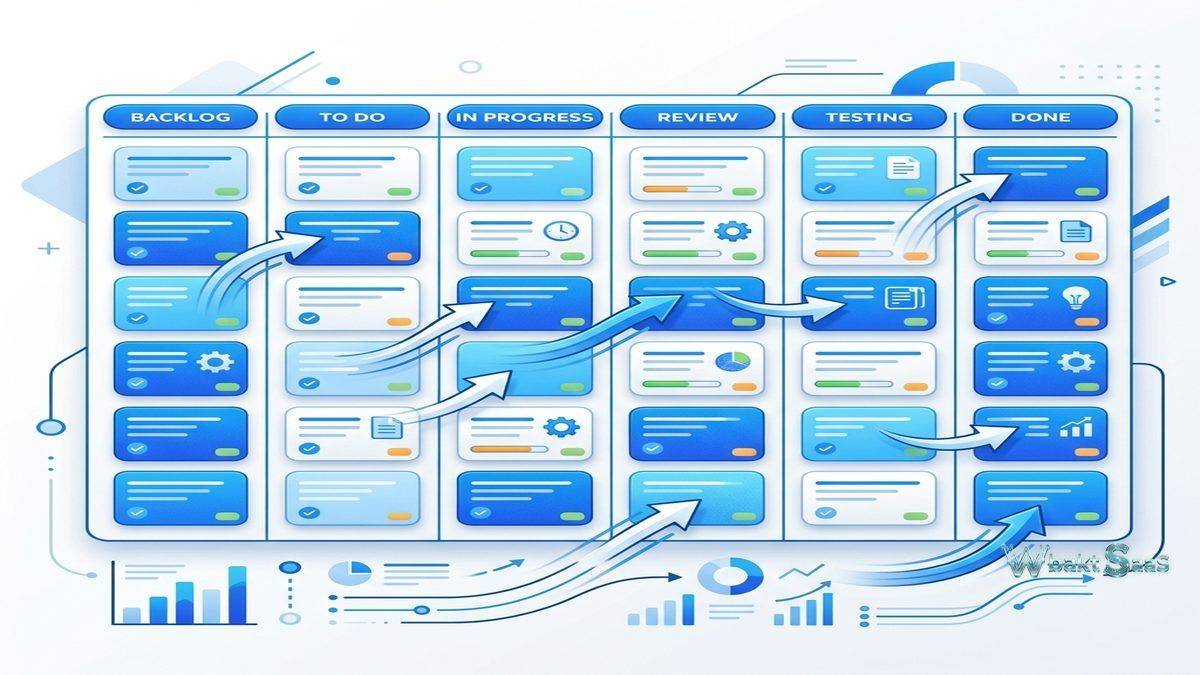
Some tools succeed not by offering the most features, but by doing one thing exceptionally well. Trello has built its reputation on this principle, delivering a Kanban board experience that is immediately understandable to virtually anyone who has ever organized sticky notes on a whiteboard. The visual simplicity of moving cards across columns — from “To Do” through “In Progress” to “Done” — maps to how many people naturally think about work progression. For teams that need organized task tracking without the overhead of complex project management software, Trello provides an elegant balance between structure and simplicity.
Acquired by Atlassian in 2017, Trello now operates within the Atlassian ecosystem alongside tools like Jira, Confluence, and Bitbucket. This has influenced Trello’s development trajectory, with deeper integrations into the Atlassian suite and a positioning that emphasizes accessibility and flexibility rather than competing with more feature-dense project management platforms. Understanding Trello’s strengths and intentional limitations helps teams determine whether its focused approach matches their workflow requirements or whether they need something with more structural depth.
Overview
Trello’s organizational model is straightforward: Workspaces contain Boards, Boards contain Lists, and Lists contain Cards. Each Board represents a project, process, or any collection of related work. Lists function as columns that define stages, categories, or groupings within that Board. Cards are the individual items — tasks, ideas, requests, or any unit of work — that move between Lists as they progress.
This three-level hierarchy is intentionally shallow compared to platforms with five or six organizational layers. The simplicity is deliberate: less structure means less configuration overhead, faster setup, and a lower cognitive load for team members who just need to see what needs to be done and move work forward. A new team can create a functional Trello Board in minutes — define three or four Lists, add Cards for current work items, and begin tracking progress immediately.
The trade-off is that teams managing complex, multi-project programs with hierarchical dependencies may find Trello’s flat structure limiting. While workarounds exist — using multiple linked Boards, organizing with labels, or adding structure through Power-Ups — Trello does not natively support the deep organizational hierarchies that enterprise-scale project management demands. This is not a deficiency in Trello’s design; it is a conscious positioning choice that makes the platform excel for certain use cases while leaving others to more complex alternatives.
Core Capabilities
Cards and Card Details
Cards are where Trello’s depth reveals itself beneath the surface simplicity. While a Card appears as a simple titled element on a Board, clicking into a Card opens a detailed view with extensive capabilities. Card descriptions support rich text formatting with Markdown. Checklists allow decomposition of a Card into smaller steps, with progress bars showing completion percentage. Due dates can be set with reminder notifications. Labels provide color-coded categorization for filtering and visual identification. Attachments support files from local devices, Google Drive, Dropbox, Box, and OneDrive. The activity feed tracks all changes to the Card, creating an audit trail of modifications.
Card members indicate who is responsible for or involved with a particular item. Multiple members can be assigned, supporting collaborative work. Comments on Cards enable threaded discussions about specific items, keeping conversations contextual rather than scattered across email or messaging platforms. The @mention functionality notifies specific team members when their attention is needed on a particular Card.
Custom fields — available on paid plans — extend Card data beyond the built-in properties. Teams can add dropdown fields, number fields, date fields, checkboxes, and text fields to capture information specific to their workflow. A content team might add custom fields for “Content Type,” “Word Count Target,” “Review Status,” and “Publication Date.” A sales team might add “Deal Value,” “Probability,” and “Expected Close Date.” Custom fields appear on Card fronts for at-a-glance visibility and can be used as filter criteria.
Board Views
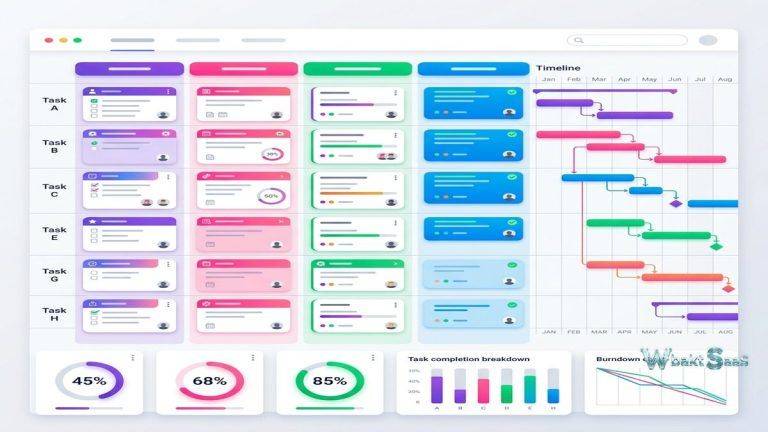
While Trello is fundamentally a Kanban board tool, it now offers additional views that expand how teams can visualize their Board data. Timeline view displays Cards with dates along a horizontal calendar, useful for deadline-oriented planning. Calendar view presents Cards on a monthly grid. Table view provides a spreadsheet-like interface for rapid data review and editing across all Cards. Dashboard view generates charts and metrics from Board data — Card counts by List, by member, by label, and by due date status.
Map view plots Cards with location data geographically, useful for teams managing location-specific work such as event planning, real estate, or field operations. These additional views transform Trello from a pure Kanban tool into a more versatile platform, though the core Board view remains the primary interface for most users and the reason most teams choose Trello in the first place.
Butler Automation
Butler is Trello’s built-in automation engine, offering rule-based automation, scheduled commands, and custom buttons without requiring coding knowledge. Rules execute automatically when specified conditions are met — for example, “When a Card is moved to the Done List, check all checklist items, remove all members, and set the due date as complete.” Scheduled commands run at specified times — “Every Friday at 5pm, move all Cards in the Review List to the Archive List.”
Custom buttons allow teams to create one-click actions that execute multiple steps simultaneously. A “Start Working” button on a Card might change the label to “In Progress,” add the current user as a member, set a due date for three days from now, and move the Card to the Active List. These compound actions reduce the repetitive clicks that manual workflow management requires and ensure that process steps happen consistently.
Butler’s capabilities have expanded significantly over time, now supporting card and board buttons, rules, scheduled commands, and due date triggers. While not as sophisticated as automation engines in more complex platforms, Butler covers the most common automation patterns that Kanban-based teams need. For teams whose automation requirements exceed Butler’s capabilities, Trello integrates with external automation platforms like Zapier and Make for more complex cross-application workflows.
Power-Ups and Extensibility
Power-Ups are Trello’s extension mechanism, adding functionality beyond the core Board experience. The Power-Up directory includes hundreds of integrations and feature extensions across categories:
Communication: Slack, Microsoft Teams, and email integrations connect Trello notifications and Card creation with team messaging environments. Cards can be created from Slack messages, and Board activity can be streamed to designated channels.
File Management: Google Drive, Dropbox, Box, and OneDrive Power-Ups enhance file attachment with direct cloud storage browsing and preview functionality within Card interfaces.
Reporting: Analytics Power-Ups add reporting dashboards, burndown charts, time-in-list tracking, and export capabilities that Trello’s native interface does not provide.
Time Tracking: Integrations with platforms like Toggl, Harvest, and Clockify add time logging directly to Trello Cards, supporting teams that need to track hours against tasks for billing or capacity planning.
Development: GitHub, GitLab, and Bitbucket Power-Ups connect code repositories with Trello Cards, showing commit activity, pull request status, and branch information within the project management context.
Free plans include limited Power-Up access, while paid plans unlock unlimited Power-Ups. Teams evaluating Trello should consider which Power-Ups their workflow requires and ensure their plan tier supports the necessary integrations.
Collaboration Features
Trello supports real-time collaboration with multiple team members viewing and editing the same Board simultaneously. Card movements, edits, and comments appear for all Board members without page refreshes. The Activity feed on each Board provides a chronological log of all actions — Card creation, movements, assignments, comments, and attachment additions — serving as both a communication tool and an audit trail.
Board-level permissions control who can view and edit content. Private Boards restrict access to invited members only. Workspace-visible Boards are accessible to all members of the Workspace. Public Boards are visible to anyone with the link, useful for open project tracking or community-facing roadmaps. Within Boards, observer roles can be assigned to stakeholders who need visibility without editing capabilities.
For organizations managing multiple related Boards, Trello’s Workspace features provide cross-Board visibility. Workspace views aggregate data from all Boards in the Workspace, showing a unified timeline, table, or Calendar view across projects. This addresses one of the traditional limitations of Board-centric tools — the difficulty of seeing how work across multiple Boards connects and overlaps.
Template Library and Quick Start
Trello maintains an extensive template gallery covering use cases across business functions, personal productivity, and specialized industries. Templates provide pre-configured Boards with Lists, sample Cards, and recommended Power-Ups that teams can clone and customize rather than building from scratch. Categories include project management, marketing, sales, engineering, HR, education, design, and operations.
Community-contributed templates expand the library further, with experienced Trello users sharing Board configurations that address specific workflow patterns. A user looking for a content editorial workflow can find templates with Lists for “Ideas,” “Research,” “Drafting,” “Review,” “Editing,” and “Published” — complete with sample Cards demonstrating how to use checklists, labels, and due dates within that workflow. The template ecosystem significantly reduces setup time for teams adopting Trello, particularly those unfamiliar with Kanban methodology who benefit from seeing how others have structured similar workflows.
Custom templates allow teams to create standardized Board structures that can be replicated for recurring projects. A consulting firm that starts a new client engagement every month can create a template Board with the standard project phases, task Cards, and automation rules that every engagement requires, then clone it for each new client. This ensures consistency across projects while saving the setup time of manual configuration.
Mobile Experience
Trello’s mobile applications for iOS and Android deliver a well-optimized experience that reflects the platform’s visual nature. Cards can be created, edited, moved between Lists, and commented on with touch-friendly interactions. The drag-and-drop Card movement that defines the desktop experience translates effectively to mobile with swipe and hold gestures. Push notifications keep team members informed of Board activity, Card assignments, due date reminders, and mentions.
Offline access allows users to view cached Board data without internet connectivity, with changes synchronizing automatically when connectivity resumes. For team members who frequently work from phones or tablets — field workers, sales professionals, executives in transit — the mobile experience supports meaningful engagement with project tracking beyond passive notification viewing.
Camera integration enables direct photo capture and attachment to Cards, useful for teams managing physical work where visual documentation is relevant — construction progress, event setup, product inspection, or facility maintenance. Barcode scanning Power-Ups extend mobile capabilities for inventory management and asset tracking use cases.
Use Cases and Practical Applications
Trello’s simplicity makes it particularly effective for several common business scenarios:
Content Production Pipelines: Editorial teams managing blog posts, social media content, video production, or marketing collateral use Trello Boards with Lists representing production stages. Each Card represents a content piece, with checklists tracking individual steps (research, draft, design, review, publish), labels categorizing content types, and due dates managing the editorial calendar.
Recruitment and Hiring: HR teams track candidates through hiring stages — Applied, Phone Screen, Interview, Assessment, Offer, Hired — with each candidate represented as a Card. Attachments hold resumes and assessment notes, labels indicate position type, and Butler automation moves Cards to “Follow Up” Lists when interview dates pass without status updates.
Product Feedback Management: Product teams collect feature requests, bug reports, and user feedback on a Trello Board. Cards move from “Submitted” through “Under Review,” “Planned,” “In Development,” and “Released.” Team members vote on Cards to indicate priority, and public-facing Boards let users see the status of their submitted requests.
Personal Productivity: Individual professionals use Trello for personal task management, reading lists, habit tracking, goal planning, and project organization. The visual Board format provides a satisfying overview of personal work that text-based to-do lists sometimes lack. The free tier’s capabilities are sufficient for most personal use cases, making Trello accessible without cost considerations.
Event Planning: Event coordinators manage vendor contacts, venue logistics, speaker coordination, marketing tasks, and day-of checklists on Trello Boards. The visual progression from planning through execution helps event teams track dozens of parallel workstreams without losing sight of dependencies and deadlines.
Pricing Structure
Trello’s free tier provides functional project management with unlimited Cards, up to 10 Boards per Workspace, limited Power-Up access, and basic automation through Butler. For individuals and small teams with modest needs, the free tier offers genuine value without artificial constraints on core functionality.
Paid plans progressively unlock unlimited Boards, unlimited Power-Ups, additional views (Timeline, Table, Calendar, Dashboard), advanced checklists, custom fields, increased automation capacity, administrative controls, and priority support. Enterprise plans add organization-wide administrative features, attachment restrictions, and advanced security controls.
Pricing follows a per-user, per-month model with annual billing discounts. Trello’s pricing is generally competitive within its category, particularly for teams that need solid Kanban management without the premium pricing that more complex platforms command.
Pricing and features are subject to change. Please verify current plan details on the official Trello website before making purchasing decisions.
Advantages and Limitations
| Advantages | Limitations |
|---|---|
| Intuitive Kanban interface with near-zero learning curve | Limited organizational hierarchy (no nested projects or sub-boards) |
| Fast setup — functional boards created in minutes | Custom fields and advanced views require paid plans |
| Butler automation covers common workflow patterns | Complex project dependencies not well-supported natively |
| Extensive Power-Up ecosystem for feature extension | Boards with hundreds of cards can become unwieldy |
| Competitive pricing with a genuinely useful free tier | Reporting capabilities are basic without third-party Power-Ups |
| Strong Atlassian ecosystem integration | Not designed for enterprise-scale program management |
Conclusion
Trello excels by embracing focus rather than fighting it. The platform does not try to be everything to everyone — it provides an exceptionally well-executed Kanban board experience that works for teams managing visual, stage-based workflows. Content production pipelines, onboarding processes, design workflows, event planning, personal productivity systems, and any process that moves items through defined stages align naturally with Trello’s model.
The platform’s limitations are equally clear. Teams needing complex dependency management, multi-level project hierarchies, advanced resource planning, or sophisticated reporting beyond what Power-Ups provide should evaluate more feature-rich alternatives. Project management platforms such as Asana, Monday.com, ClickUp, and Jira each offer greater structural depth for teams whose work complexity demands it.
For teams that have tried more complex tools and found themselves fighting the software instead of managing their work, Trello often represents a welcome return to simplicity. The best project management tool is the one your team actually uses consistently, and Trello’s low friction ensures that adoption rarely becomes an obstacle. Teams should evaluate whether their workflows genuinely need the complexity that larger platforms provide, or whether Trello’s focused approach would serve them more effectively.
Features, pricing, and availability discussed in this review reflect information available at the time of writing. Software products evolve continuously, and details may have changed since publication. Please verify current information directly on the official Trello website. WBAKT SaaS is an independent review platform with no affiliate relationships with any software company mentioned in this article.
For related project management comparisons, see our reviews of Asana’s task organization, Monday.com’s visual management, and ClickUp’s all-in-one workspace.
About the Author