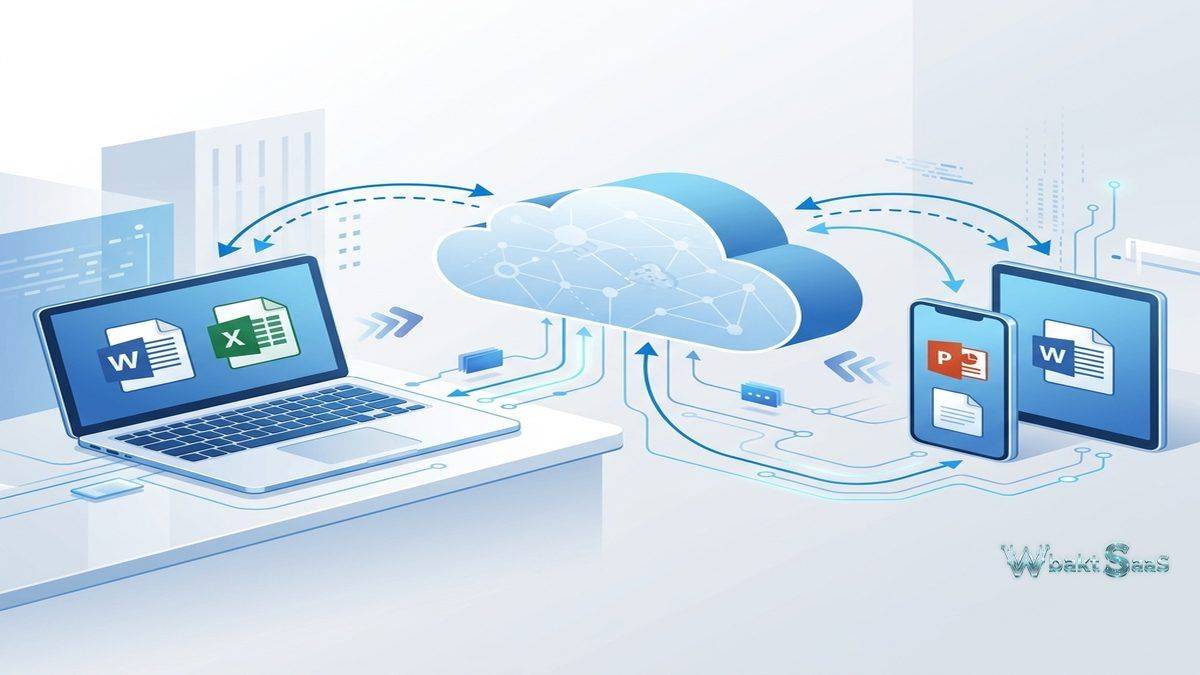
Organizations deeply invested in the Microsoft ecosystem face a straightforward cloud storage decision — Microsoft OneDrive provides native cloud storage that integrates seamlessly with Microsoft 365, Windows, SharePoint, Teams, and the broader Microsoft productivity infrastructure. While standalone cloud storage providers offer compelling features, none can match the depth of integration that OneDrive achieves within the Microsoft environment. Files saved in OneDrive are immediately accessible in Word, Excel, PowerPoint, Outlook, and Teams without import, export, or format conversion. SharePoint document libraries synchronize to OneDrive automatically, creating a truly unified file access experience that bridges personal and organizational content. For the billions of users who work within Microsoft’s productivity ecosystem daily, OneDrive provides cloud storage that feels native because it is native — designed, built, and continuously optimized as an integral component of the Microsoft 365 platform rather than a third-party addition.
Originally launched as SkyDrive in 2007 and officially rebranded to OneDrive in 2014, the platform has evolved from a basic consumer file storage service into an enterprise cloud storage solution that effectively serves organizations of all sizes. OneDrive for Business, included with Microsoft 365 subscriptions, provides each user with generous cloud storage capacity along with enterprise security, compliance, and administration features. The platform’s integration depth extends beyond simple file storage into real-time co-authoring, intelligent file discovery and recommendations, ransomware detection, and cross-device synchronization that maintains productivity across desktops, mobile devices, and web browsers. Understanding OneDrive’s capabilities helps organizations evaluate whether the native Microsoft integration advantage justifies standardizing on OneDrive or whether standalone storage platforms offer capabilities that Microsoft’s integrated approach does not adequately address.
File Synchronization
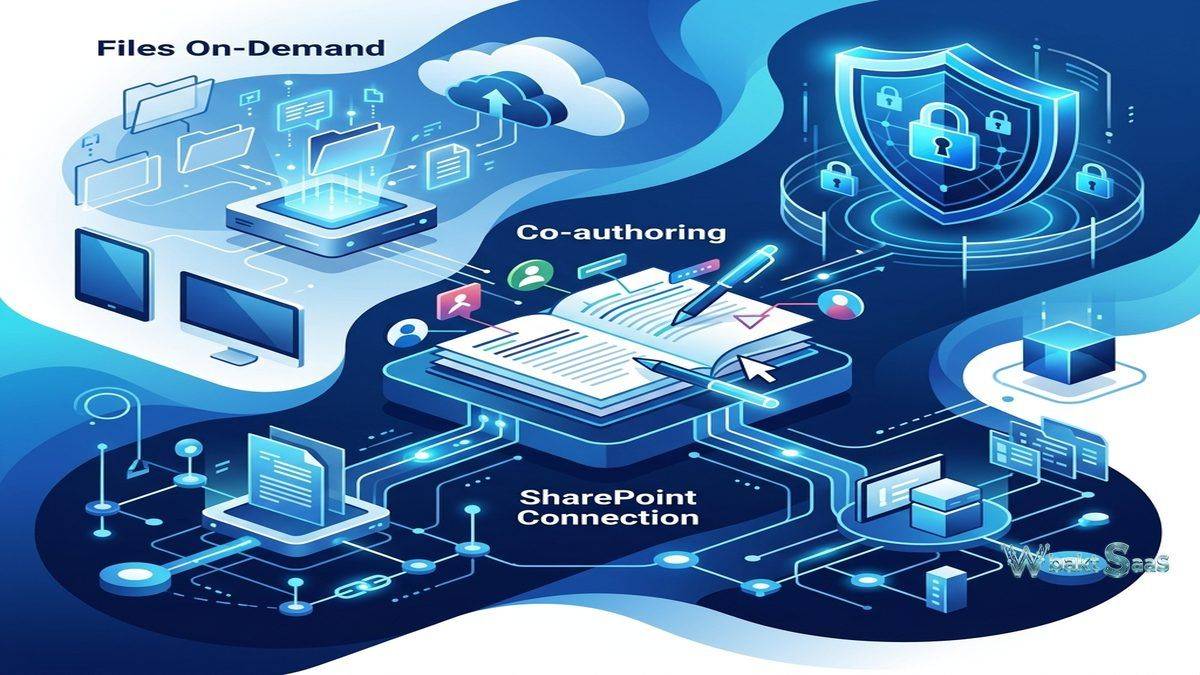
OneDrive sync client provides highly reliable file synchronization across Windows, macOS, iOS, and Android devices. The innovative Files On-Demand feature enables accessing all cloud-stored files from the desktop file system without downloading them locally — files appear with cloud-only, locally available, or always available status indicators. opening a cloud-only file triggers an immediate automatic download, and files not accessed for configurable periods return to cloud-only status automatically, intelligently optimizing local storage usage. Known Folder Move automatically redirects Windows Desktop, Documents, and Pictures folders to OneDrive, providing continuous automatic cloud backup for the locations where users most commonly save files without requiring behavior changes.
Efficient differential synchronization transmits only changed portions of modified files, optimizing bandwidth usage for large Office documents and other files where edits affect small portions of the total file size. Granular network bandwidth controls enable administrators and users to limit OneDrive’s upload and download speeds, preventing sync traffic from consuming excessive network capacity during business hours.
Microsoft 365 Integration
OneDrive’s integration with Microsoft 365 applications creates a seamless and intuitive workflow between file storage and document creation. Office applications — Word, Excel, PowerPoint — save directly to OneDrive with AutoSave that preserves every change in real-time. Co-authoring enables multiple users to edit the same Office document simultaneously, with real-time cursor tracking, commenting, in-document chat, and change tracking that maintains collaborative editing context. Outlook integration enables sharing OneDrive links instead of file attachments, reducing email storage usage and ensuring recipients always access the current file version. Teams integration makes OneDrive the default storage layer for personal files directly shared within Teams conversations and channels.
SharePoint Integration
OneDrive and SharePoint operate on the same underlying storage and synchronization infrastructure, enabling seamless access to SharePoint document libraries through the OneDrive sync client. SharePoint libraries synchronize to the local file system alongside personal OneDrive files, creating a unified file access experience that spans personal and organizational content. Users seamlessly access both OneDrive files and SharePoint documents through the same file explorer interface without needing to distinguish between personal and shared organizational storage. This integration eliminates the friction between personal cloud storage and organizational content management that organizations experience when using separate storage platforms.
Personal Vault
Personal Vault provides an extra-security area within OneDrive for storing sensitive files — identity documents, financial records, and personal certificates — protected by additional authentication beyond the standard OneDrive login. Personal Vault requires identity verification (fingerprint, face recognition, PIN, or two-factor authentication code) each time it is accessed, and automatically locks after a period of inactivity. Files in Personal Vault receive an additional layer of BitLocker encryption on Windows devices. For users who store sensitive personal documents alongside regular work files, Personal Vault provides security differentiation without requiring separate storage solutions.
Version History
Version history preserves previous versions of all files stored in OneDrive, with retention periods configured by organizational policy. Any previous version can be viewed, compared, and restored. For Office documents, the version history integrates with the application’s native version tracking, providing granular change visibility. OneDrive’s restore feature enables reverting the entire OneDrive account to a previous point in time — rolling back all files to their state at any moment within the retention window. This account-level restore capability is particularly valuable for recovering from ransomware attacks, mass accidental deletions, or other events that affect multiple files simultaneously.
Security and Compliance
OneDrive implements Microsoft’s enterprise security framework including encryption at rest (BitLocker and per-file encryption), encryption in transit (TLS), Azure Active Directory integration for identity management, conditional access policies, and robust data loss prevention (DLP). Sensitivity labels classify and protect files based on organizational data classification policies, applying encryption, access restrictions, and visual markings automatically. Microsoft Defender Advanced Threat Protection scans files for malware and suspicious content, with ransomware detection that identifies mass file modifications consistent with encryption attacks and alerts administrators. Comprehensive compliance certifications include SOC 1/2, ISO 27001, HIPAA, FedRAMP, and GDPR.
Admin Controls
OneDrive administration through the Microsoft 365 Admin Center and SharePoint Admin Center provides centralized management of storage allocation, sharing policies, sync settings, device access controls, and compliance configurations. Sharing policies configure whether users can share externally, with which domains, and whether anonymous links are permitted. Sync policies control which devices can sync, whether specific file types are excluded, and whether sync is restricted to domain-joined devices. Storage reporting shows usage across the organization with trending analysis and per-user storage consumption details.
Mobile Access
OneDrive mobile apps on iOS and Android provide file access, preview, sharing, offline access, and document scanning. PDF markup enables annotating PDF documents directly from the mobile app. Document scanning captures physical documents and whiteboards using the mobile camera, automatically enhancing image quality and saving as PDFs. Offline access marks files for availability without network connectivity, with automatic synchronization when connectivity is restored. Mobile notifications alert users to file sharing, collaboration activity, and storage usage.
Search and Discovery
OneDrive search leverages Microsoft Search to provide content discovery across OneDrive files, SharePoint content, and connected Microsoft 365 data. Full-text search indexes document content, metadata, and properties. AI-powered search understands natural language queries and surfaces contextually relevant results based on user activity patterns and organizational signals. Photo intelligence automatically recognizes objects, locations, and text in images, enabling searching for photos by content rather than filename. Recent and shared file views provide quick access to active content without requiring search or folder navigation.
Migration Tools
Microsoft provides migration tools for transitioning to OneDrive from competing cloud storage platforms, file servers, and network drives. SharePoint Migration Tool handles bulk migration from file shares and SharePoint on-premises environments. Mover (acquired by Microsoft in 2019) provides seamless cloud-to-cloud migration from Google Drive, Dropbox, Box, and other cloud storage platforms. Migration Manager coordinates large-scale organizational migrations with scheduling, detailed progress tracking, and error handling for enterprise deployments involving thousands of users and millions of files.
Co-Authoring Experience
Real-time co-authoring in OneDrive-stored Office documents enables multiple users to edit Word, Excel, and PowerPoint files simultaneously with cursor presence, paragraph-level locking, and automatic merge of concurrent edits. Co-authoring works seamlessly across platforms — desktop Office applications, web-based Office, and mobile Office apps — enabling collaboration between users on different devices and operating systems. AutoSave preserves every change in real-time, eliminating manual save actions and the risk of lost work from application crashes or forgotten saves. For teams that collaborate heavily on documents, co-authoring transforms document editing from a sequential pass-around process into a parallel collaborative workflow.
External Sharing
OneDrive provides configurable external sharing capabilities for collaborating securely with people outside the organization — clients, partners, contractors, and vendors. Configurable sharing policies control whether external sharing is permitted, which domains are allowed, and whether guest accounts require authentication. Expiring links automatically revoke access after specified timeframes, providing time-bounded access that reduces the risk of persistent access to shared content after collaboration periods end. Password-protected links add an authentication layer for sensitive shared content. External sharing audit logs track who shared what with whom, providing administrators with important compliance visibility.
Recycle Bin Protection
OneDrive’s two-stage recycle bin provides robust deletion protection. When users delete files, they move to the first-stage recycle bin for easy user-level recovery. If users empty their recycle bin, files move to the second-stage recycle bin for administrator recovery. Files remain fully recoverable for extended retention periods (typically 93 days from the original deletion), providing a substantial safety window for accidental deletion recovery. Combined with comprehensive version history and full-account restore, OneDrive’s deletion protection creates multiple layers of data recovery capability.
Data Governance
OneDrive integrates with Microsoft’s broader data governance framework including Microsoft Purview for information protection, data lifecycle management, and compliance management. Retention policies automatically preserve and manage or delete content based on organizational retention schedules, ensuring compliance with regulatory requirements and organizational policies. eDiscovery capabilities enable legal teams to search, hold, and export OneDrive content for litigation support and regulatory investigations. Compliance Manager provides organizational compliance scoring and improvement recommendations across Microsoft 365 services including OneDrive.
Accessibility Features
OneDrive supports accessibility standards including screen reader compatibility, full keyboard navigation, high contrast mode, and descriptive alt text for file previews. Office documents stored in OneDrive support comprehensive accessibility features including reading order, document structure, and alternative text through the powerful native Office accessibility tools. These accessibility features ensure that OneDrive-based content management workflows are available to users with diverse abilities and assistive technology requirements.
Windows Integration Depth
OneDrive’s integration with Windows operating system goes beyond file synchronization. File Explorer integration provides cloud status indicators, right-click sharing, contextual menus, and storage optimization directly within the familiar native Windows file management interface. Windows Search indexes OneDrive cloud content, enabling searching cloud files alongside local content. Windows Backup leverages OneDrive for system settings, app preferences, and personalization backup, ensuring seamless continuity when users transition between Windows devices. The depth of Windows integration creates an experience where cloud storage feels indistinguishable from local storage for everyday file operations.
Common Use Cases
Microsoft-Centric Organizations: Organizations standardized on Microsoft 365 use OneDrive as their primary cloud storage, leveraging native integration with Office applications, Teams, SharePoint, Outlook, and the broader Microsoft productivity ecosystem.
Remote and Hybrid Work: Distributed workforces use OneDrive to access work files from any device, any location, with automatic and reliable synchronization that effortlessly maintains continuity across office, home, and mobile work environments without manual file management.
Education: Educational institutions on Microsoft 365 Education use OneDrive for student and faculty file storage, assignment submission, collaborative document editing, and institutional knowledge management within the familiar Microsoft ecosystem.
Enterprise Desktop Management: IT departments use Known Folder Move and OneDrive sync to protect user data on managed desktops, providing continuous automatic cloud backup that eliminates local-only data loss risk without requiring user behavior changes or additional training.
Healthcare: Healthcare organizations use OneDrive within HIPAA-compliant Microsoft 365 deployments for secure document sharing and collaboration with sensitivity labels and DLP policies protecting patient health information.
Financial Services: Financial services firms use OneDrive with advanced compliance features including sensitivity labels, DLP, retention policies, and eDiscovery for document management that meets stringent regulatory requirements.
Government: Government agencies use OneDrive within GCC and GCC High Microsoft 365 deployments for secure, FedRAMP-compliant document storage and collaboration that meets federal security and compliance requirements.
Pricing
OneDrive for Business cloud storage is included with Microsoft 365 Business and Enterprise subscriptions, providing generous substantial per-user storage alongside the full Microsoft 365 productivity suite. Standalone OneDrive for Business plans are also available for organizations needing cloud storage without the full Microsoft 365 application suite. Consumer personal OneDrive plans through Microsoft 365 Personal and Family provide consumer-grade cloud storage with Office application access. Available storage capacity increases with higher-tier plans, with options for additional storage beyond standard allocations.
Pricing and features are subject to change. Please verify current plan details on the official Microsoft OneDrive website before making purchasing decisions.
Limitations
- Microsoft ecosystem dependency: OneDrive’s advantages are strongest within the Microsoft ecosystem. Organizations using Google Workspace or other non-Microsoft productivity platforms will not realize the integration benefits that justify OneDrive.
- Non-Windows platforms: While macOS and mobile apps are available, OneDrive’s deepest integration is with Windows. macOS users may find the experience less seamless than the Windows integration.
- Third-party app ecosystem: OneDrive’s third-party integration ecosystem is narrower than Dropbox or Google Drive for non-Microsoft applications.
- Consumer vs Business: Feature differences between personal OneDrive and OneDrive for Business can create confusion for users who encounter different capabilities in home and work contexts.
- Complex administration: OneDrive administration is distributed across multiple separate admin centers (Microsoft 365, SharePoint, Azure AD), potentially creating complexity for administrators managing policies across the platform.
Summary
Microsoft OneDrive provides cloud file storage that is deeply and natively integrated with the Microsoft 365 ecosystem, creating a seamless experience where file storage, document creation, collaboration, and communication function as a unified platform. The native integration with Office applications, SharePoint, Teams, and Windows creates compound productivity value for organizations committed to the Microsoft ecosystem — eliminating the integration friction, format conversion issues, and workflow fragmentation that occur when using third-party storage platforms alongside Microsoft productivity tools.
Files On-Demand and Known Folder Move provide intelligent storage management that optimizes local disk usage while ensuring all cloud content remains accessible through the native file system. For IT departments managing thousands of desktops, these features provide automatic data protection and storage optimization without requiring user training or behavior changes.
Cloud storage platforms including OneDrive for Business, Google Drive, Dropbox, Box, and iCloud each serve different ecosystem strategies, integration philosophies, and organizational needs. OneDrive’s key advantages center on Microsoft 365 integration depth, SharePoint connectivity, deep Windows optimization, enterprise security features, and the significant cost efficiency of storage already included with existing Microsoft 365 subscriptions. Organizations evaluating cloud storage should consider whether their productivity ecosystem aligns with Microsoft 365 or whether standalone storage platforms offer distinct capabilities that better serve their specific requirements and technology investments.
Features, pricing, and availability discussed in this review reflect information available at the time of writing. Software products evolve continuously, and details may have changed since publication. Please verify current information directly on the official Microsoft OneDrive website. WBAKT SaaS is an independent review platform with no affiliate relationships with any software company mentioned in this article.
For related cloud storage tools, see our reviews of Dropbox Enterprise, Google Drive, and SharePoint.
About the Author